Email Drafting & Management
Junior can draft, reply to, and manage emails when connected to your Gmail or Outlook.
Junior can draft, reply to, and manage emails when connected to your Gmail or Outlook.
Connect Your Email
Connect Gmail or Outlook through conversation or from your Dashboard > Integrations. See Integrations for setup details.
Tell Junior What to Write
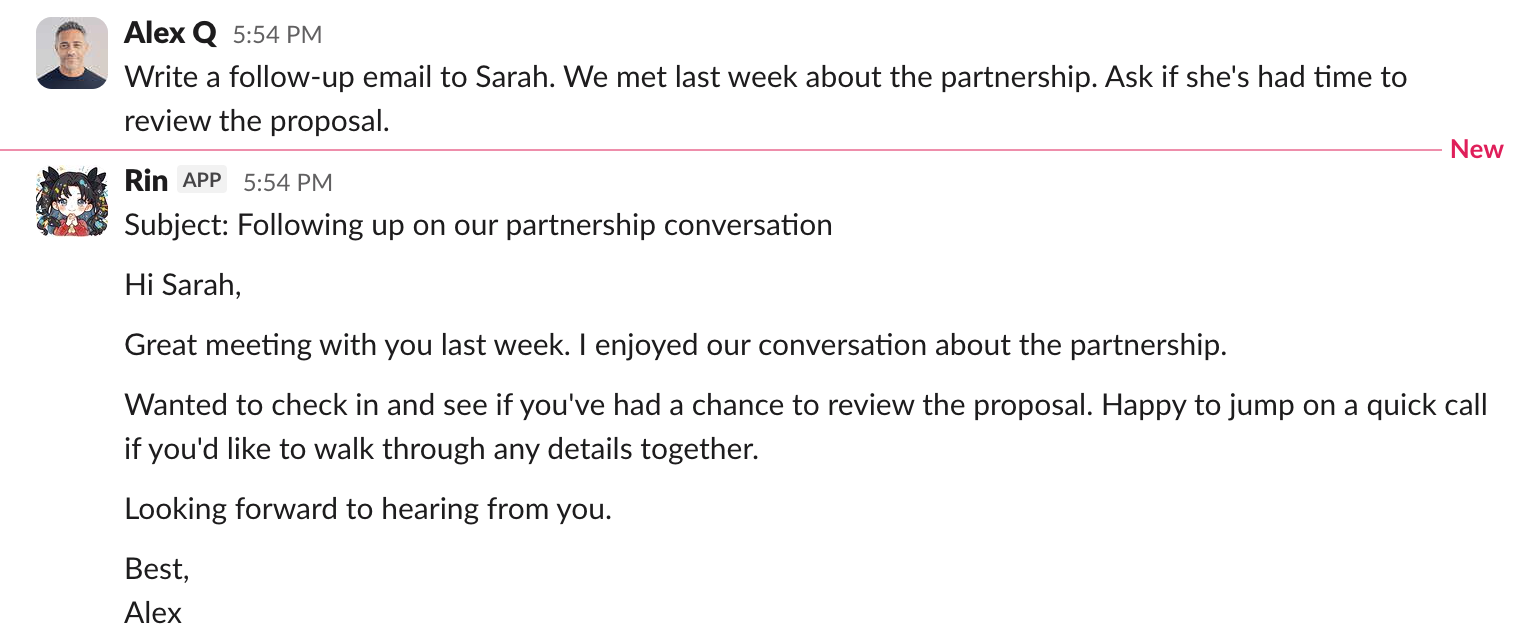
Whether it's a new email or a reply, just describe what you need:
- "Draft an email to the design team about pushing the deadline to Friday."
- "Send an email to sarah@example.com. Follow up on the partnership proposal we discussed last week."
- "Reply to that email from the client yesterday. Tell them we're on track."
- "Write a cold outreach email to this investor. Here's their background: [details]."
If Junior needs the original email for context, you can:
- Forward it to Junior's email address
- Paste the content into your Slack chat with Junior
- Just describe it if Junior already has the context from a previous conversation
You can also tell Junior the tone you want: "professional but warm", "short and direct", or "friendly, like we've known them for a while".
Sending
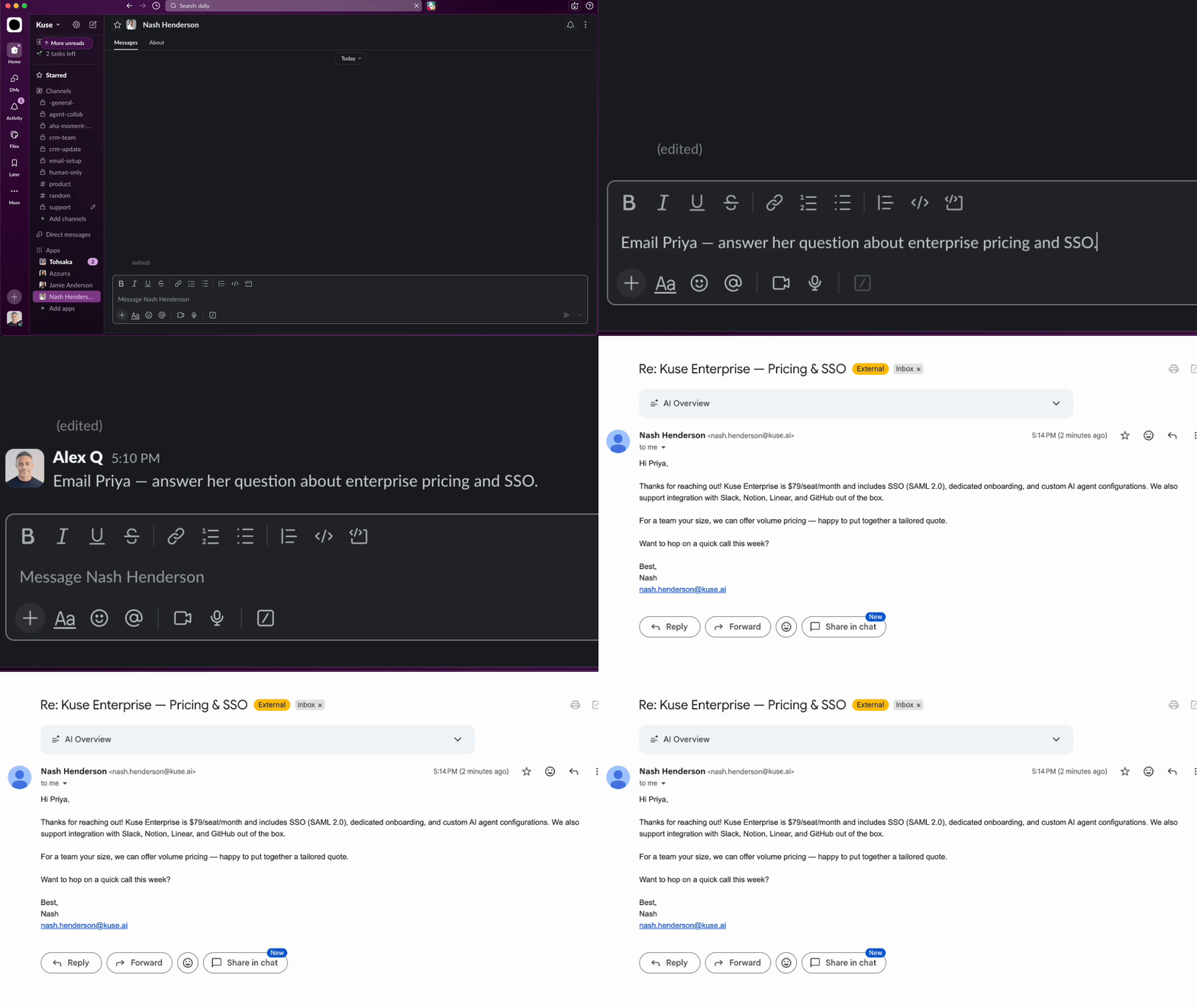
By default, Junior drafts the email and shows it to you first. You can edit, ask for revisions, or approve and send.
If you prefer, tell Junior to send directly without review:
"Send this email to sarah@example.com, no need to show me first."
You can set a permanent preference: "From now on, always send routine emails directly. Only show me drafts for new contacts or important emails."
Batch emails
Need to send multiple similar emails? Give Junior a template and a list of recipients:
"Send personalized outreach emails to these 5 leads. Use this template as a base but customize the first line for each."
Junior will send them one by one. If you want to review before sending, say so: "Draft them first, let me review before you send."