Onboarding Process
Get Junior up and running in three steps: sign up, connect Slack, and start working.
Step 1: Sign Up and Pay
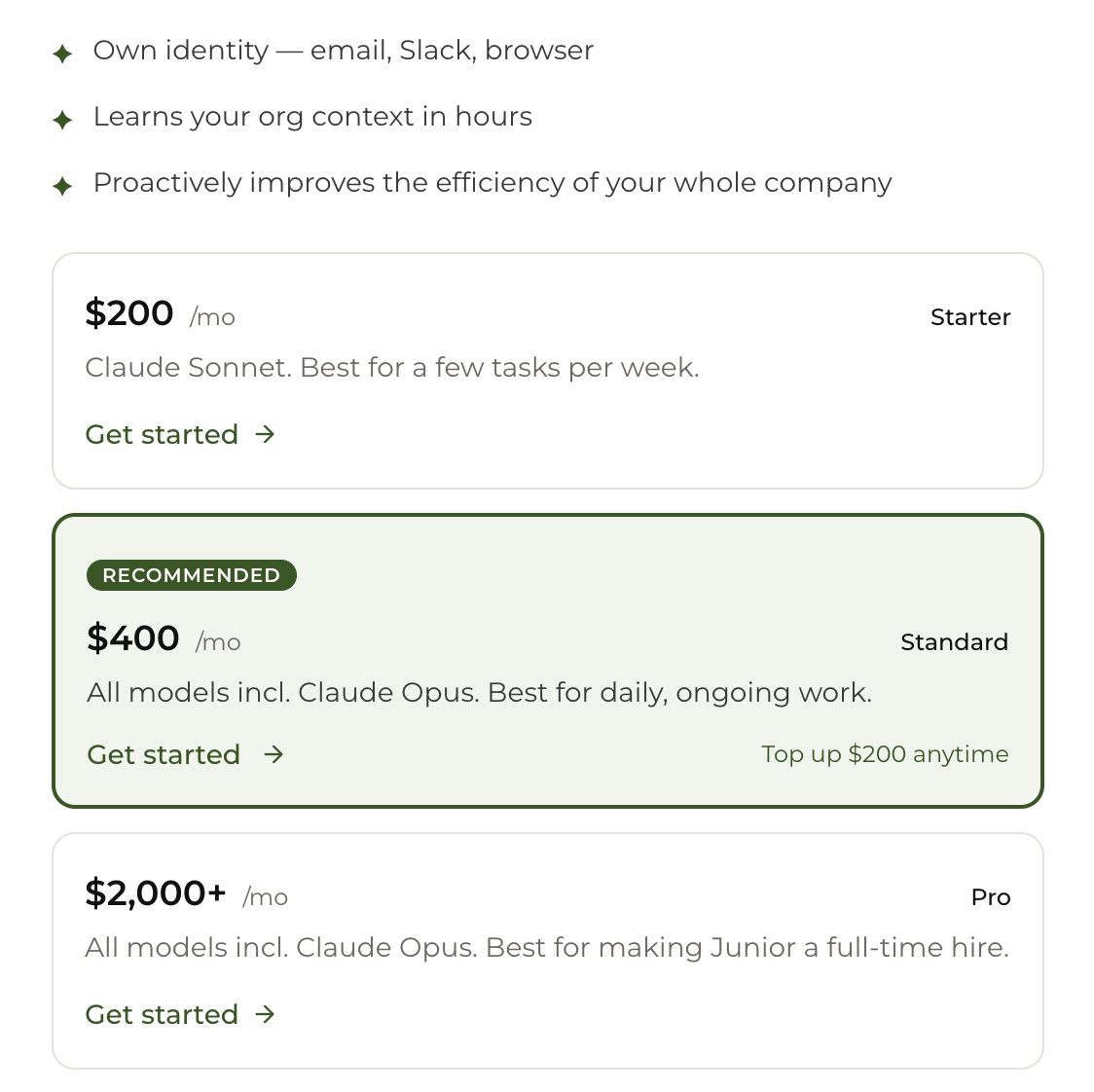
Go to junior.so and choose your plan:
- $200/month — Starter plan. Great for individuals.
- $400/month — Standard plan. Best for teams of 3-4.
- $2,000/month — Pro plan. Best for teams of 10-20.
Complete payment through Stripe. We'll be notified automatically once payment goes through.
Step 2: Connect Your Slack Workspace
After payment, junior.so will guide you through connecting Slack. The process has three parts.
Part 1: Create App
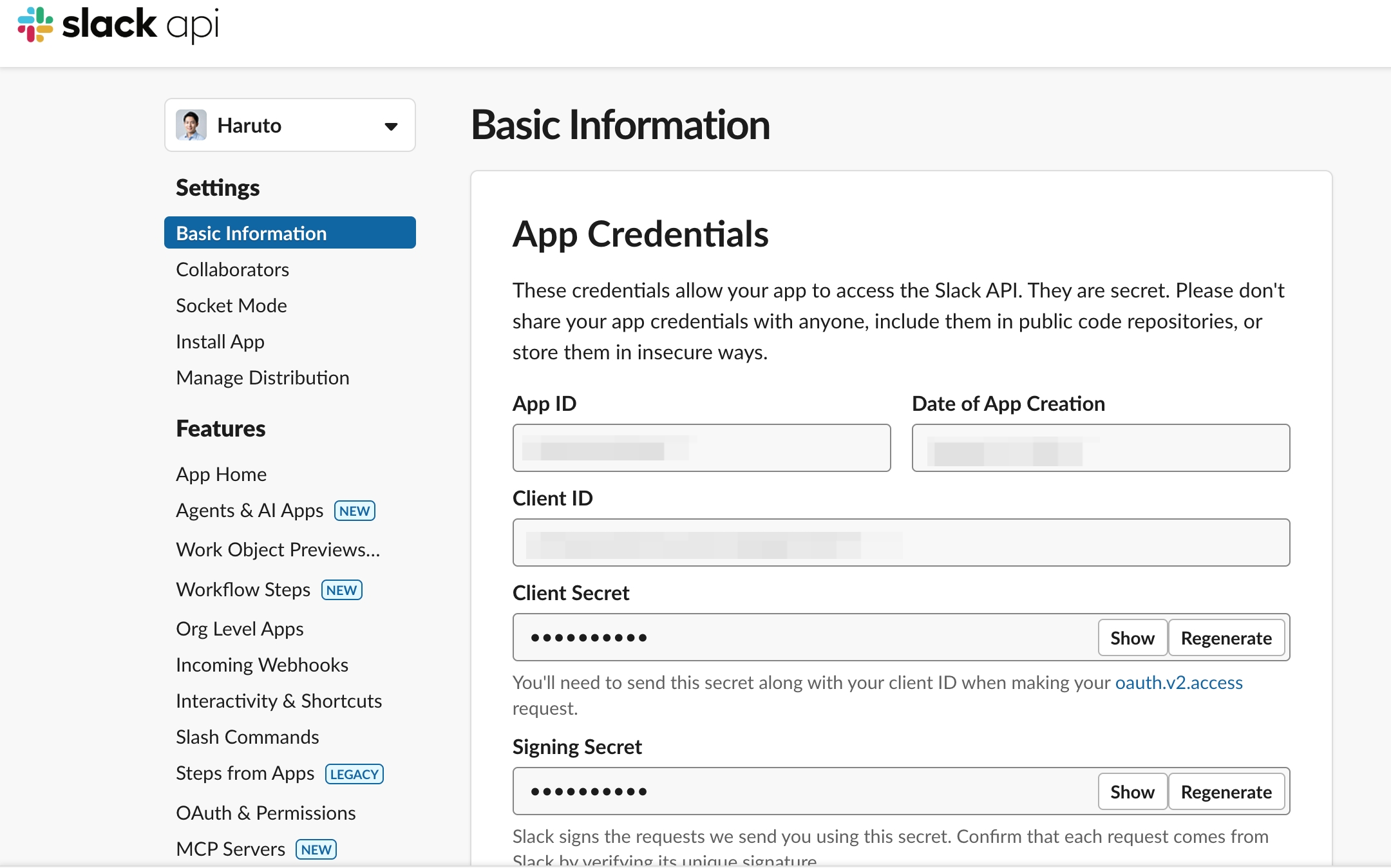
Click "Create Slack App for [Your Junior's Name]" on the setup page. This opens Slack API.
Part 2: Copy Tokens
You'll need two tokens:
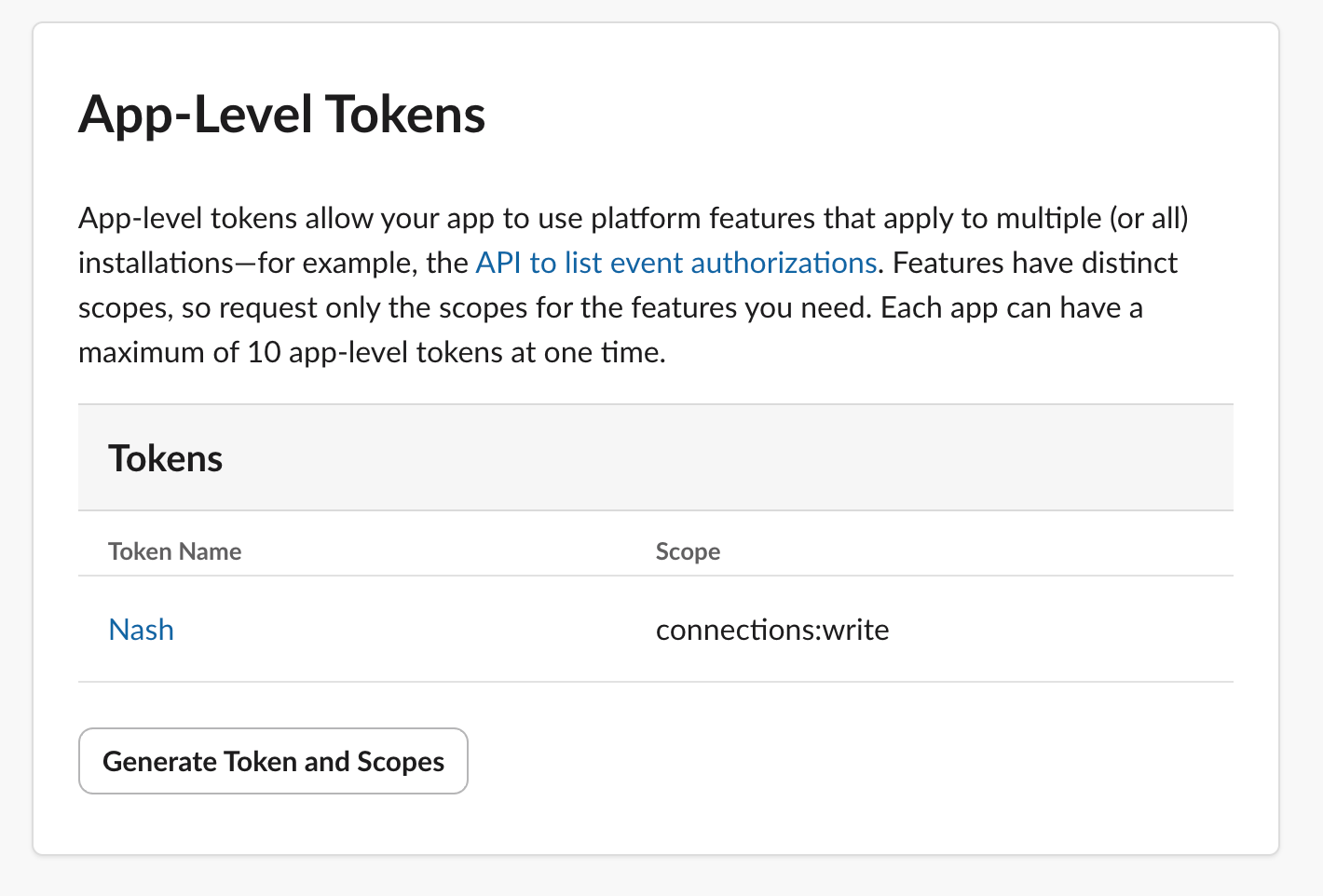
- App-Level Token: In Basic Information, scroll to App-Level Tokens. Click Generate Token & Scopes. Add scope
connections:write. Name the token anything (e.g., "Junior"). Click Generate and copy the token.
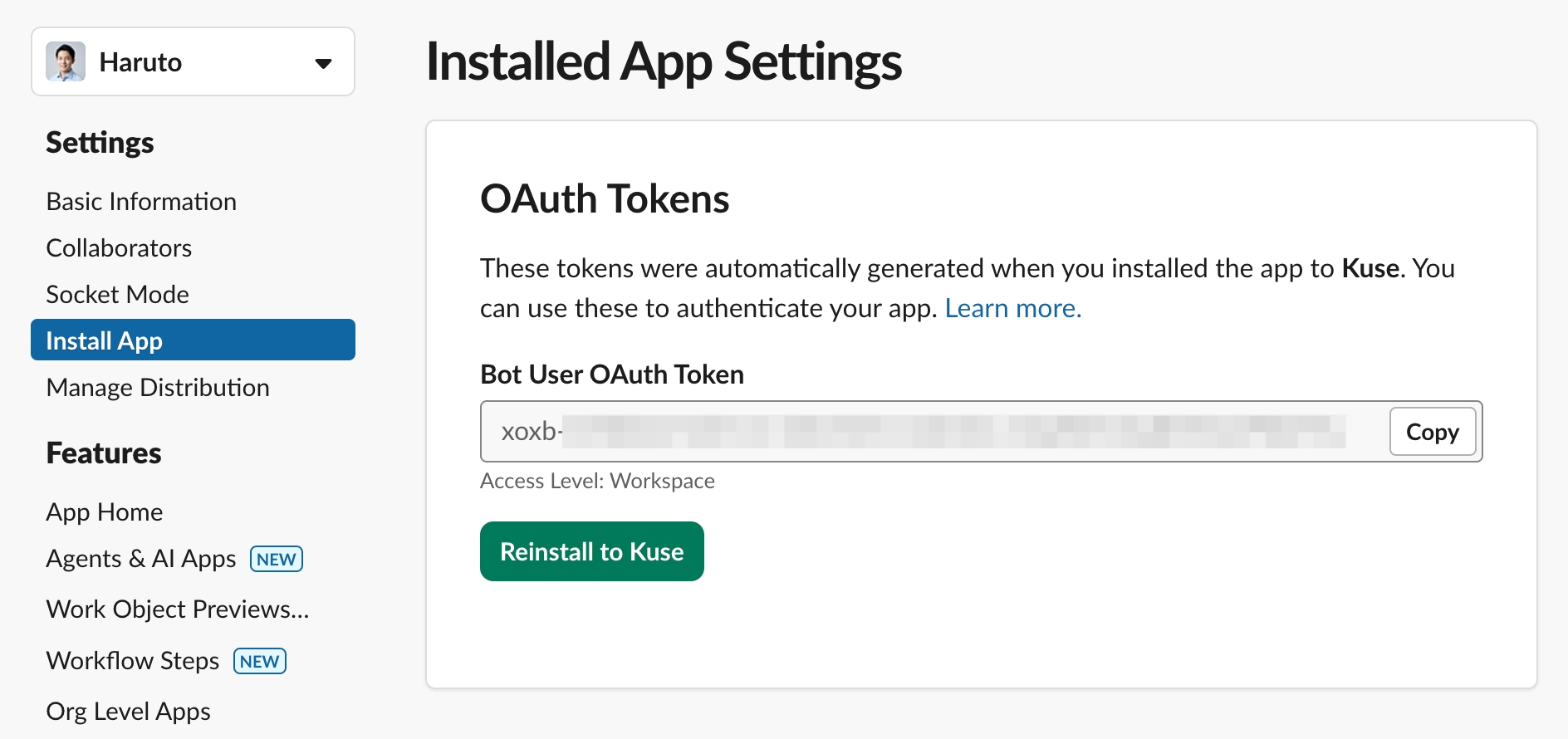
- Bot Token: In the sidebar, click Install App, then Install to Workspace, then Allow. Go to OAuth & Permissions and copy the Bot User OAuth Token (starts with
xoxb-).
Paste both tokens into Junior's setup page where prompted.
Part 3: Connect
Select which Slack channels Junior should join, then click Connect. Junior is now live in your workspace.
Step 3: Start Working with Junior
You don't need to start the conversation. Junior will message you first.
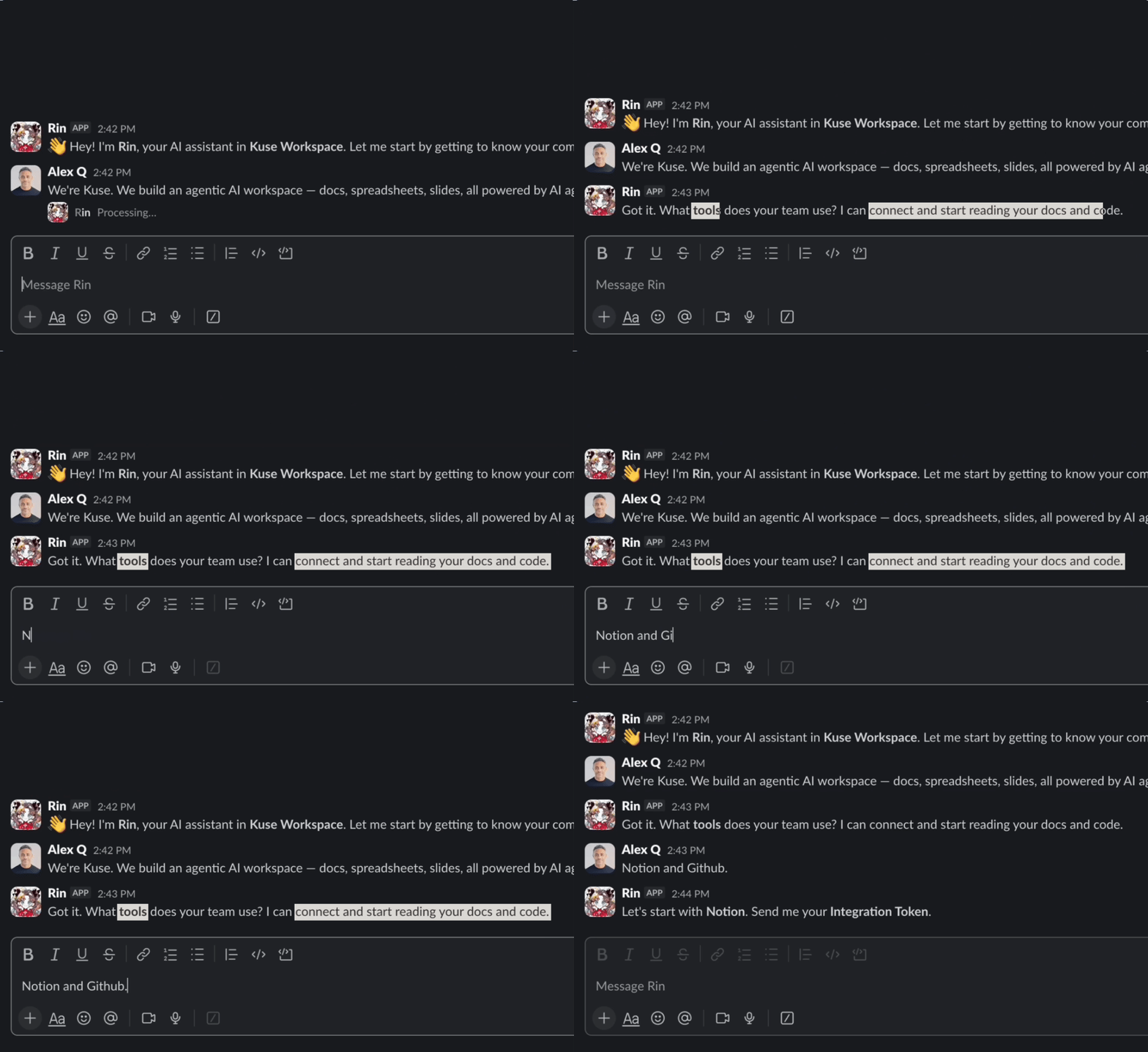
After connecting, Junior reads through the channels you selected and sends its first message. Based on what it finds, Junior will:
- Introduce itself and its role on your team
- Summarize what it noticed in your channels (issues, patterns, ongoing discussions)
- Propose specific tasks it can start on, with concrete next steps
- Suggest tools to connect to unlock more capabilities
Connect tools right from the conversation. No need to leave Slack. Just tell Junior:
- "Connect my Gmail"
- "Set up Google Calendar"
- "Link my Jira"
Junior will walk you through the authorization steps right in the chat. You can also connect tools manually at Dashboard > Integrations if you prefer.
From there, just reply naturally. Tell Junior what your priorities are, ask it to adjust, or give it a new task.
Junior gets smarter with every interaction. The more you work with it in the first few days, the more useful it becomes.