Scheduled Tasks
Junior can automatically run recurring work on a schedule, so you don't have to remember to ask.
Junior can automatically run recurring work on a schedule, so you don't have to remember to ask. Think of it as giving Junior a standing to-do list.
How to create a scheduled task
Just tell Junior what you want and when:
- "Send me a daily briefing every morning at 9am with my calendar, email highlights, and Slack mentions."
- "Every Monday at 10am, check what competitors posted on X last week and send me a summary."
- "Remind me every Friday at 3pm to follow up with leads who haven't replied."
Junior will set up the task and confirm the schedule. That's it.
What can you schedule?
| Task Type | Example |
|---|---|
| Daily briefings | Morning summary of your calendar, emails, and Slack highlights |
| Competitor monitoring | Weekly scan of competitor websites, social media, or product updates |
| Follow-up reminders | Automatic nudges to contact leads, clients, or teammates |
| Reports | Weekly metrics summary, project status updates, content performance |
| Research | Regular scans for industry news, job postings, or market trends |
| Custom tasks | Anything you want Junior to do on a regular basis |
Managing your scheduled tasks
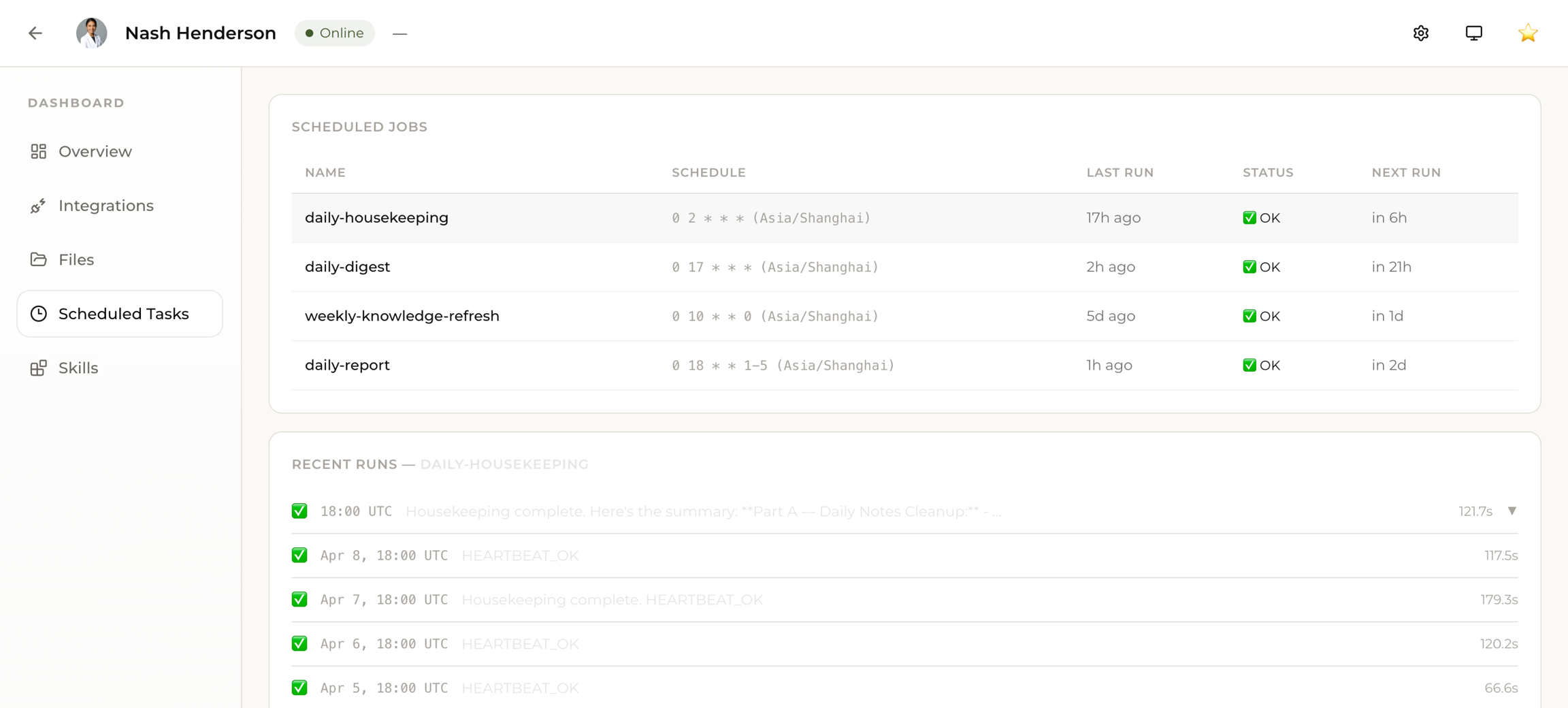
Go to your Dashboard Overview and open the Scheduled Tasks tab. From there you can:
- View all active and paused tasks
- Edit the schedule or content by telling Junior what to change
Tips:
- Be specific about timing. "Every weekday at 9am" is better than "every morning."
- Tell Junior what to include and what to skip. "Only flag emails from clients, ignore newsletters."
- You can have multiple scheduled tasks running at the same time.
- To change a task, just tell Junior: "Update my daily briefing to also include open GitHub issues."
Start with one daily briefing. Once you see how it works, add more tasks for the repetitive work you do every week.